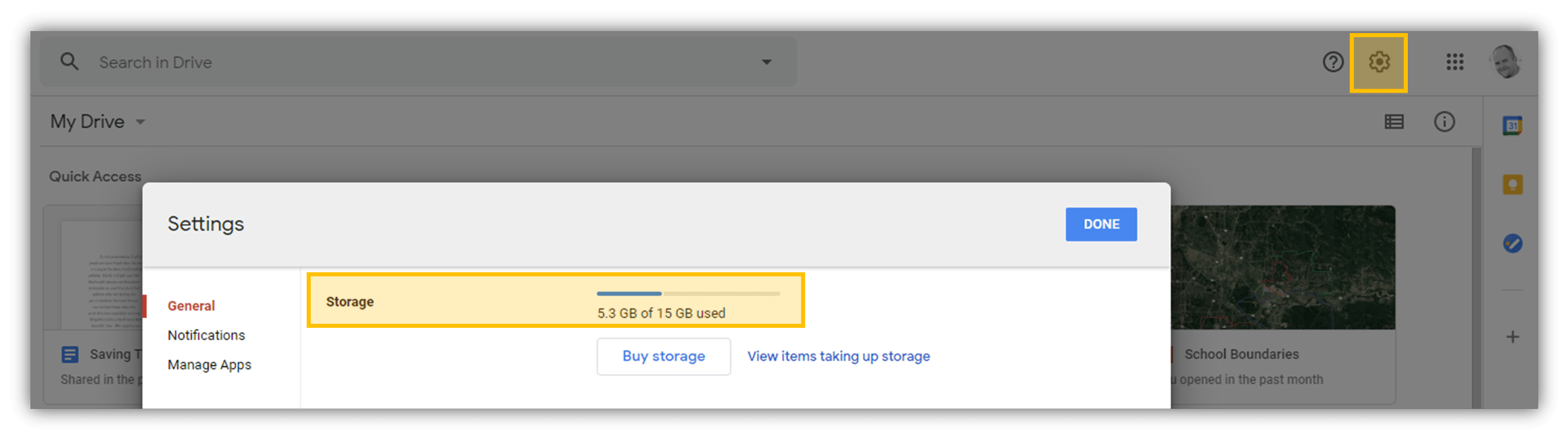
Check the storage metrics for SharePoint Online (Office 365)
How to view storage metrics for every site
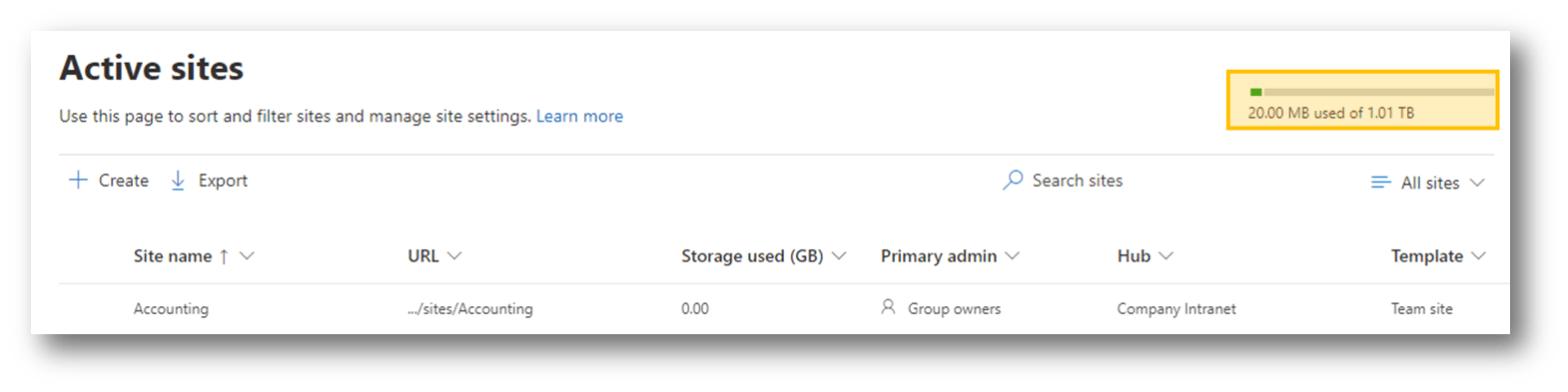
1 – Browse to the Active sites page in the SharePoint Admin Center.
2 – Sign in with an account that has admin permissions.
3 – In the upper right of the page, view the amount of storage used for all the SharePoint sites.
How to view storage metrics for individual sites
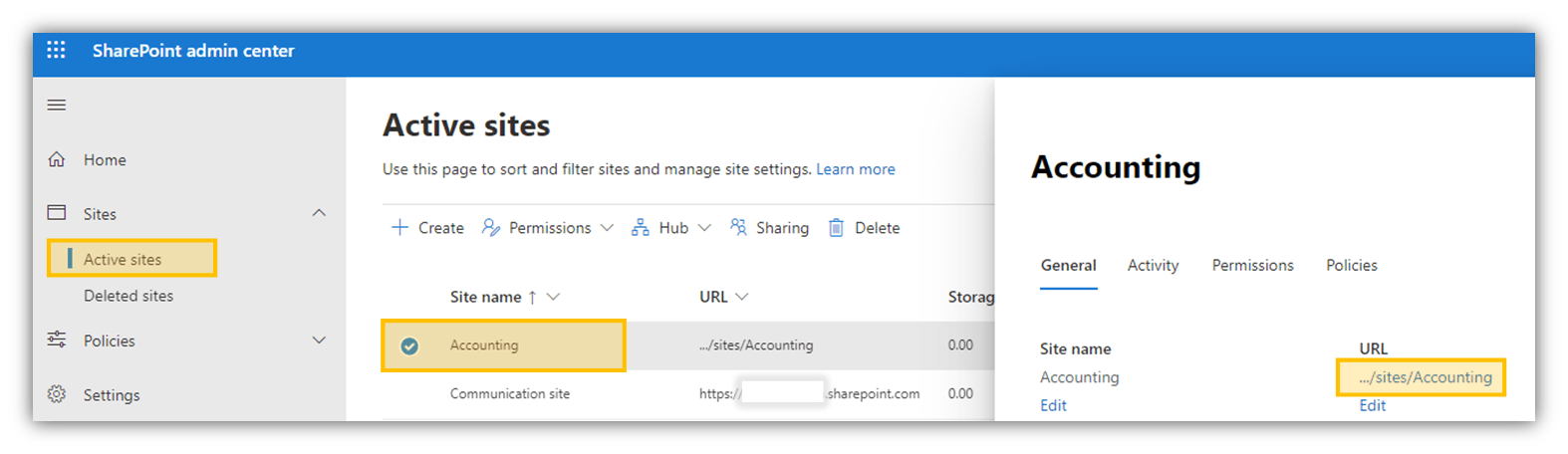
1 – Browse to the Active sites page in the SharePoint Admin Center
2 – Click the site for inspection
3 – Click on its URL to open the site
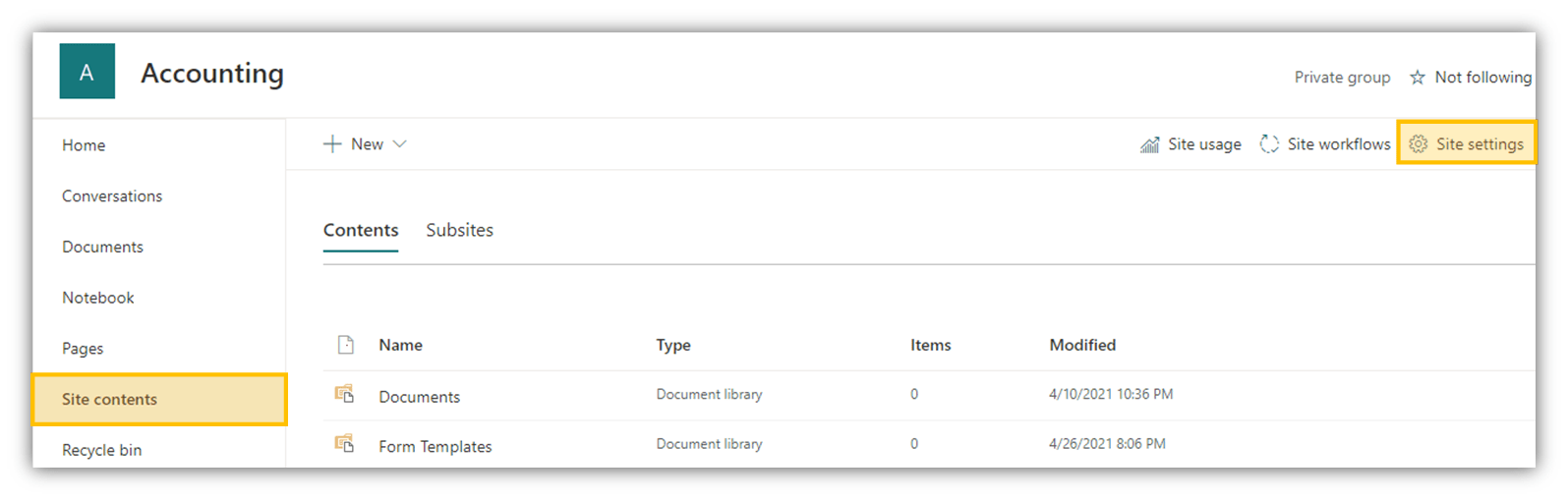
4 – Click Site Contents on the left side of the page
5 – Click Site Settings
6 – Click Storage Metrics
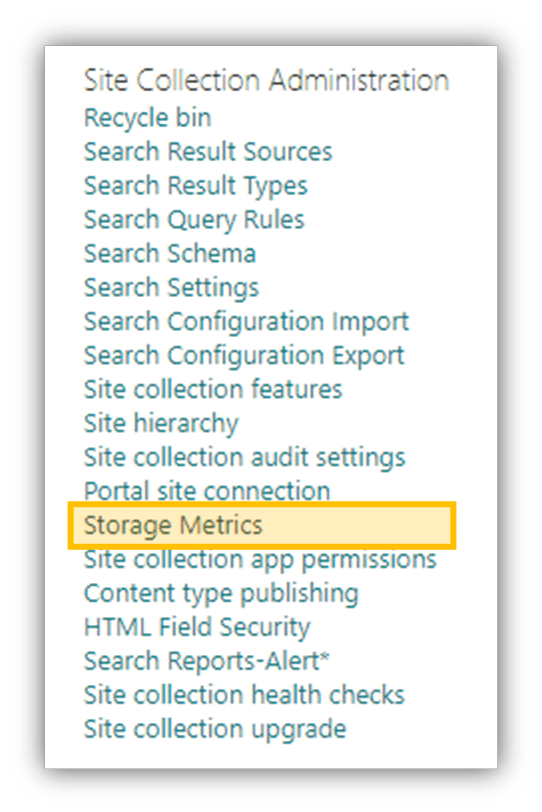
7 – View the total amount of site storage and the size of every document library in the site

Check the storage metrics for OneDrive for Business (Office 365)
1 – Browse to the OneDrive for Business account
2 – Click the Gear in the top right ribbon
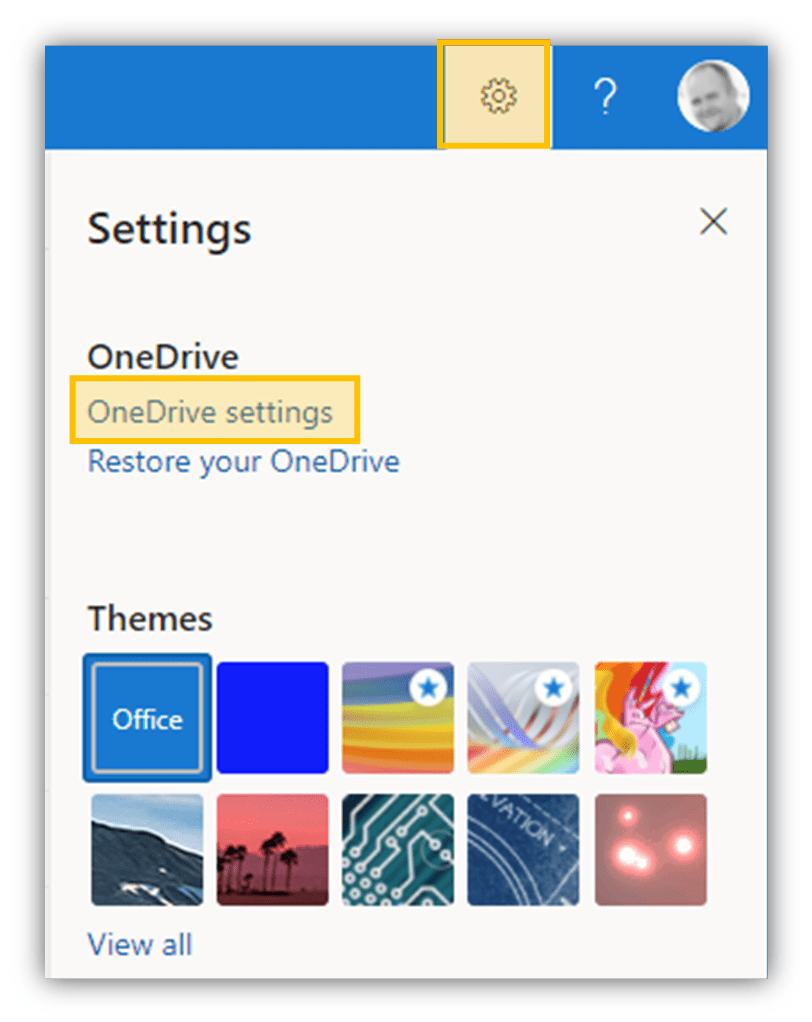
3 – Click OneDrive settings
4 – Click More Settings
5 – Click Storage Metrics
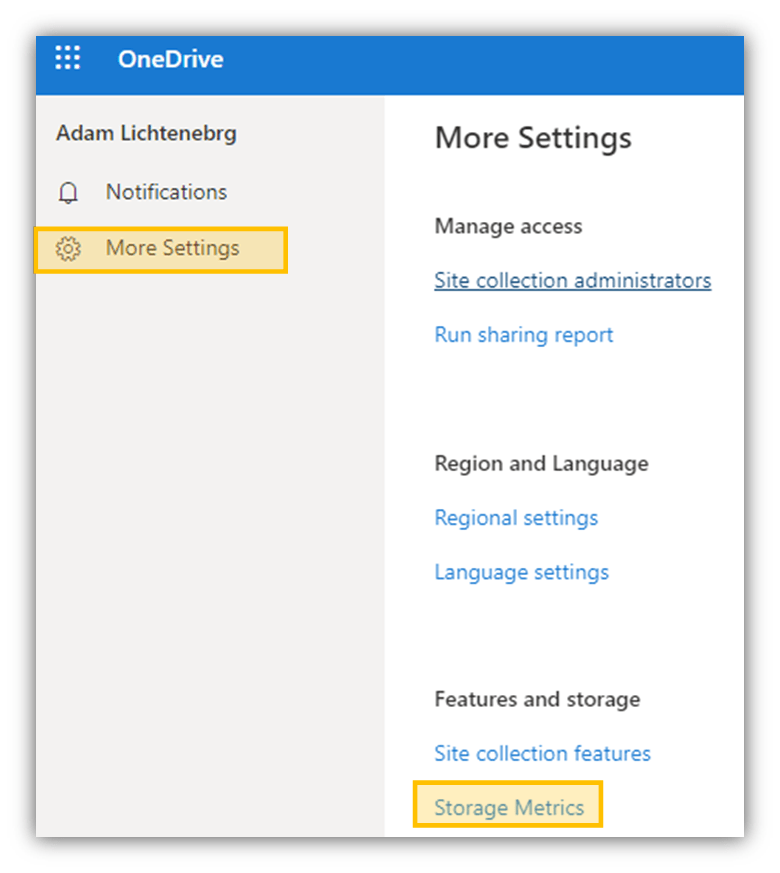
6 – View the total amount of consumed and available storage

Check the storage metrics for Dropbox for Business
1 – Sign in to dropbox.com
2 – Click your avatar
3 – Click Settings
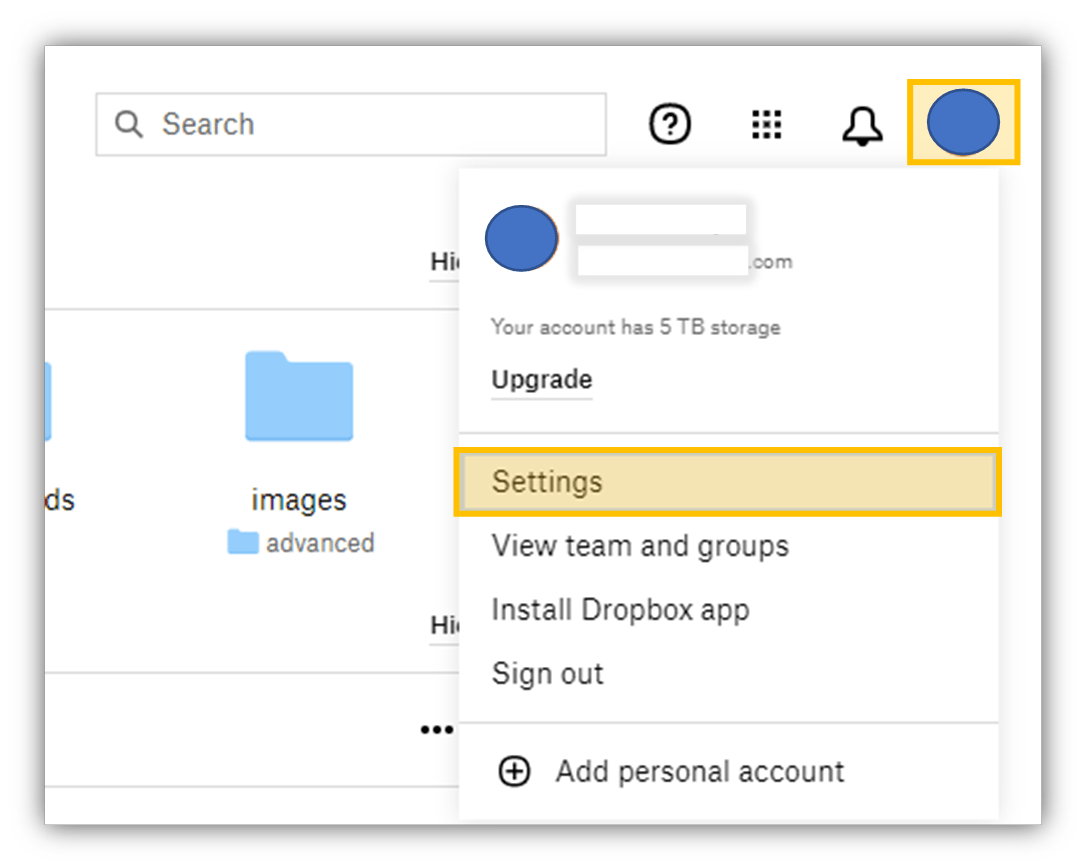
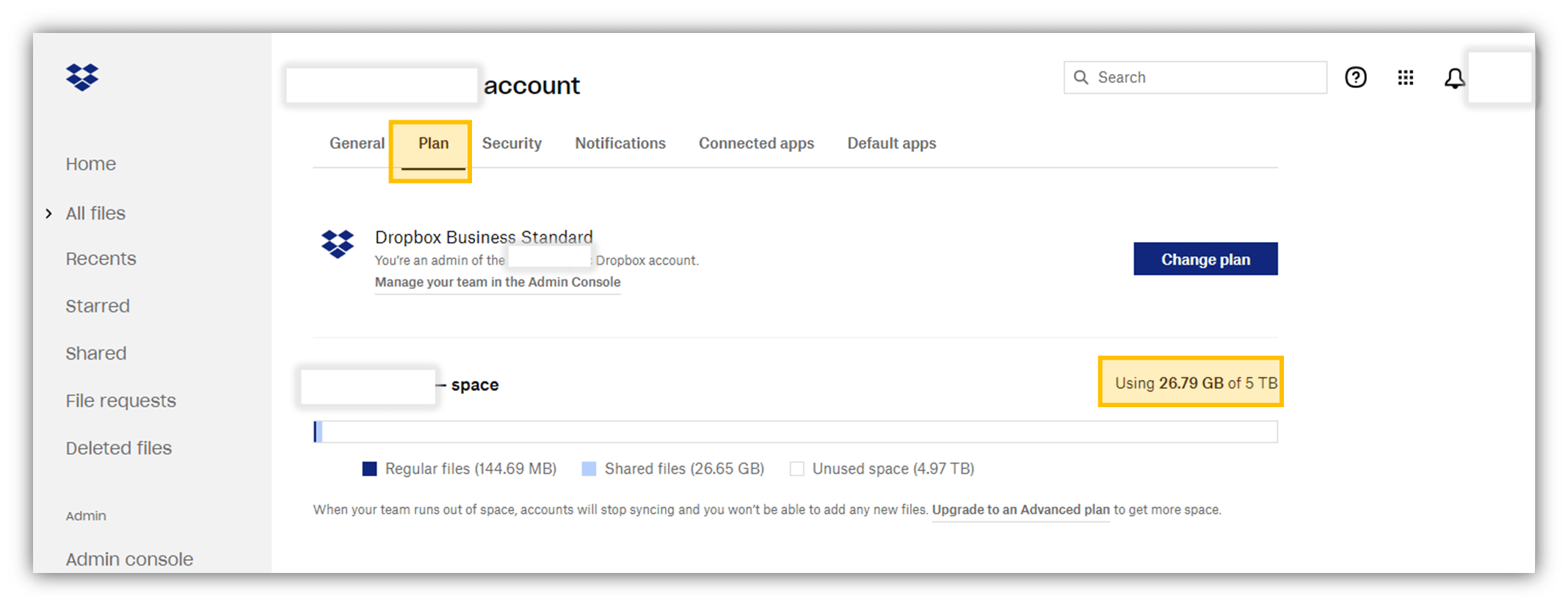
4 – Click Plan
5 – Check the bar under Dropbox space. This shows the combination of regular files and shared files in your account.
Google Drive
1 – Sign in to drive.google.com
2 – Click the gear in the top right
3 – Check the bar under storage space. This shows the combination of regular files and shared files in your account.